At Cloud Sultans, our mission is to help small and large businesses to better collaborate and achieve high productivity with their teams by maximizing the power of Google Workspace (formerly GSuite). Managing tasks efficiently is critical in today’s fast-paced work environment, and Google Tasks provides a simple yet powerful way to keep your to-dos organized. In this article, we explore the top five Google Tasks tips for productivity, drawn from the expertise of Tasia Custode, that can transform the way you manage your workflow and make the most of your Google Workspace tools.
1. Add Tasks Directly from Gmail
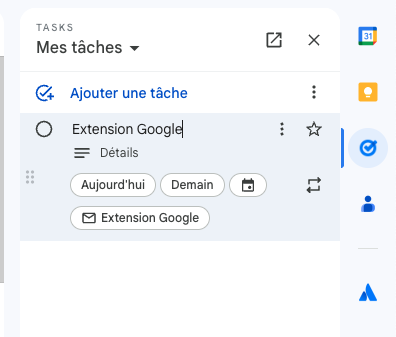
One of the most seamless ways to use Google Tasks is by adding tasks straight from your Gmail inbox. This tip leverages the tight integration between Gmail and Google Tasks, allowing you to turn important emails into actionable items instantly. You can drag and drop emails into your task list or, when inside an open email, click the “Add to Tasks” option—sometimes hidden under the three-dot menu. This method ensures that the task is linked to the original email, making it easy to reference details without hunting through your inbox. For keyboard enthusiasts, pressing Shift + T in an open email can add it to Tasks in one step, though results may vary depending on your account. Additionally, Gmail allows selecting multiple emails to add them all to Tasks simultaneously, and this functionality extends to the mobile app as well. By adding tasks directly from emails, you reduce the friction of switching between apps, ensuring you never miss an important follow-up or action item.
2. Integrate Google Tasks with Google Calendar
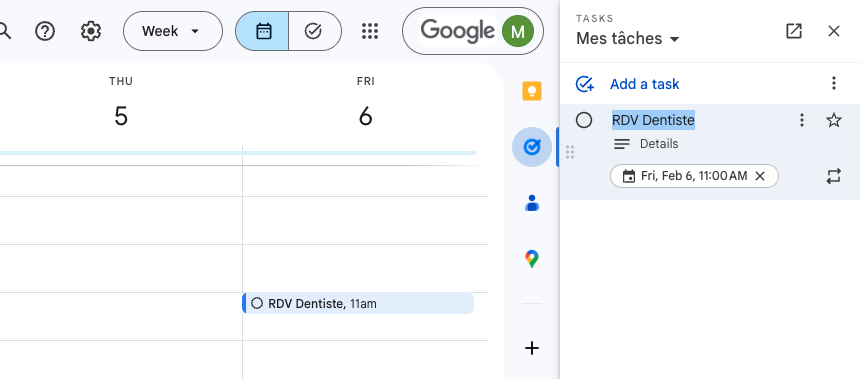
Google Calendar and Google Tasks work hand-in-hand to help you visualize your workload and deadlines. By toggling Tasks on in Google Calendar, all upcoming tasks appear alongside your events, giving you a clear picture of your schedule. You can even create tasks directly in Calendar by clicking “Add a Task” instead of an event. This allows you to set titles, times, descriptions, and assign tasks to specific lists. For enhanced productivity, customizing the color of your Tasks calendar helps differentiate them from events, making it easier to prioritize your workload at a glance. Clicking a task in Calendar lets you mark it complete instantly, providing a satisfying way to track progress. This integration not only keeps your tasks visible but also ensures your daily schedule aligns with what truly matters, preventing important to-dos from slipping through the cracks.
3. Create Recurring Tasks
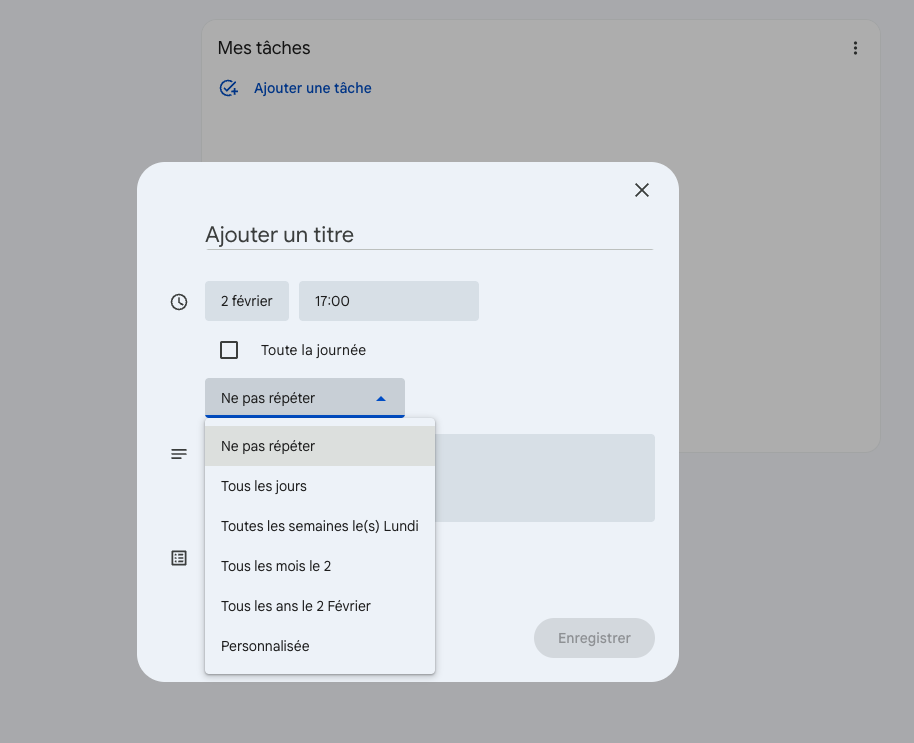
A major productivity booster in Google Tasks is the ability to create recurring tasks. If you have routine responsibilities, like weekly reports, monthly client check-ins, or annual reminders, setting them up as recurring tasks saves time and mental effort. Using the full-screen view on https://tasks.google.com/, you can add a task and then click the arrows next to the date and time to configure its recurrence. You can define the repetition frequency—daily, weekly, monthly, or yearly—and set start and end dates. Recurring tasks remain visible for every occurrence, so when you mark one instance as complete, future repetitions stay intact. This feature is especially useful for remembering birthdays, periodic reviews, or any repeating obligations. The ability to stop a recurring task at any time from either Google Tasks or Calendar adds flexibility, letting you adapt to changes in priorities without losing your organizational flow.
4. Use Subtasks for Complex Projects
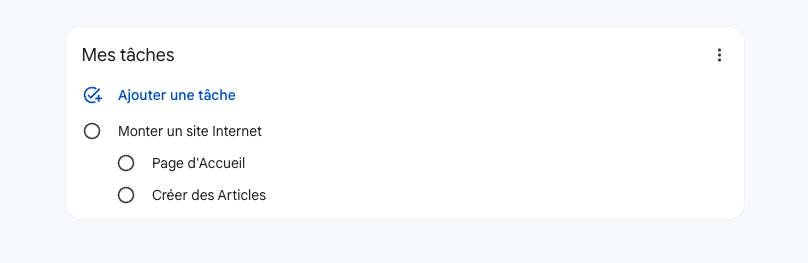
Not all tasks are simple; some require multiple steps to complete. Google Tasks allows you to break down large projects into manageable subtasks. By creating a parent task for a project, you can add subtasks for each necessary action, assigning dates and times to each as needed. This approach is invaluable for team projects, personal goal-setting, or multi-step tasks like preparing a presentation or completing a client proposal. Each subtask is displayed clearly under the main task, providing structure and preventing steps from being overlooked. Subtasks also integrate with Calendar, so you can track deadlines and mark them complete as you progress. By leveraging subtasks, you gain clarity on project complexity, reduce overwhelm, and maintain a steady pace toward completing your larger objectives.
5. Organize Task Lists by Client or Project
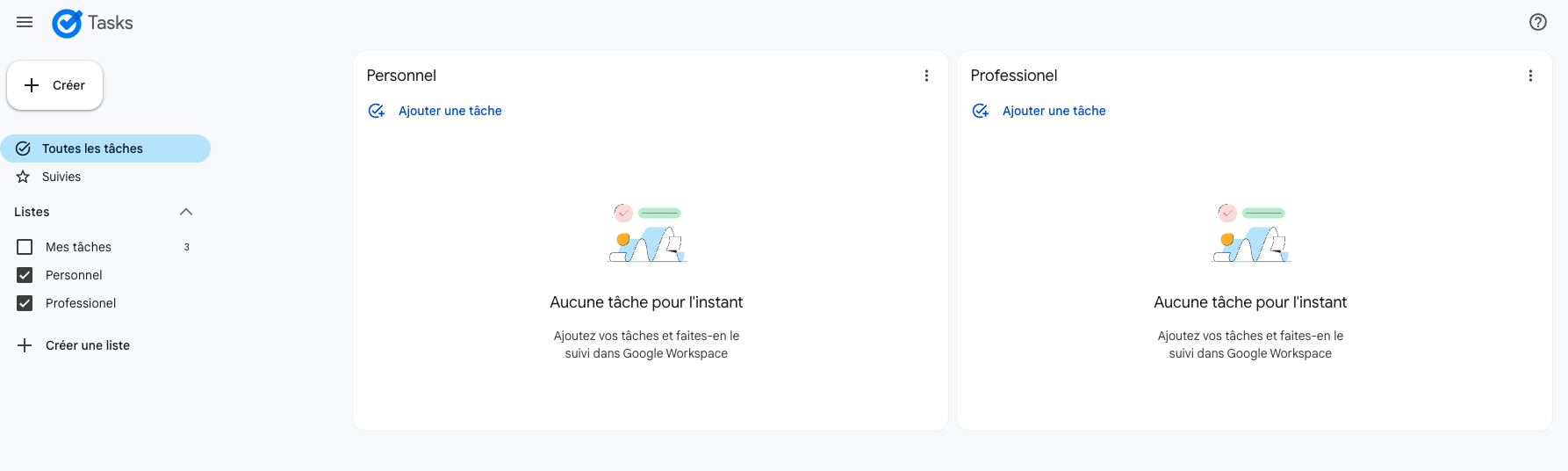
The final tip is about organization at a macro level: creating task lists by client or project. Google Tasks automatically generates a “My Tasks” list, but for maximum productivity, you can create separate lists for different projects, teams, or clients. This allows for a focused workflow and easy navigation between different areas of responsibility. Tasks can be reassigned to other lists at any time, either by dragging and dropping in the full-screen view or using the three-dot menu. You can also reorder task lists to reflect priority or workflow sequence. Structuring tasks in this way ensures you stay organized, prevents mixing unrelated items, and allows for efficient delegation if working in a team. By categorizing tasks thoughtfully, you transform Google Tasks into a robust productivity system tailored to your work style.
Using these five Google Tasks tips, you can unlock a new level of productivity within Google Workspace. From adding tasks directly from emails to creating recurring tasks, breaking projects into subtasks, and organizing by client or project, each tip enhances efficiency and clarity in managing your responsibilities. Google Tasks is more than a simple to-do list—it’s an integrated tool that, when used strategically, helps you stay on top of your work with minimal effort. These techniques not only save time but also create a workflow that supports consistency, organization, and productivity across all your Google Workspace apps.
Any questions, comments, or reactions about our article, we’re happy to hear that in the comment section below. We always love diving into healthy discussions. If you also feel that you haven’t been using Google Workspace at its best, reach us at (Cloud Sultans : https://cloudsultans.com/en/blog-post). We offer free consultation or system audit to find you the best possible solution.