At Cloud Sultans, our mission is to help small and large businesses to better collaborate and achieve high productivity with their teams by maximising the power of Google Workspace (formerly GSuite).
Are you a Google Workspace administrator who wants to improve organizational efficiency and create a scaling structure?
If so, you’re in the right place! In this article, we’ll share three iron rules for Google Workspace admins that will help you get the absolute basics right and save money in the process.
We’ll focus on the importance of group-based sharing and how it allows you to scale up different teams while keeping security tight.
By following these tips, you’ll ensure that the correct staff can access the right resources, saving you time and preventing mistakes.
So, let’s get started and learn how to create an organizational structure for efficiency in your Google Workspace account.
—->>>> Cloudsultans.com we love helping our clients and guide them to success. That’s one of the reason, we ask you please to share this post in social media to your network. 🙂
Tip 1: Group-Based Sharing
Rather than sharing resources on an individual basis, it’s essential to use group-based sharing in Google Workspace.
This approach allows administrators to scale up their IT management, create organizational efficiency, and keep security tight.
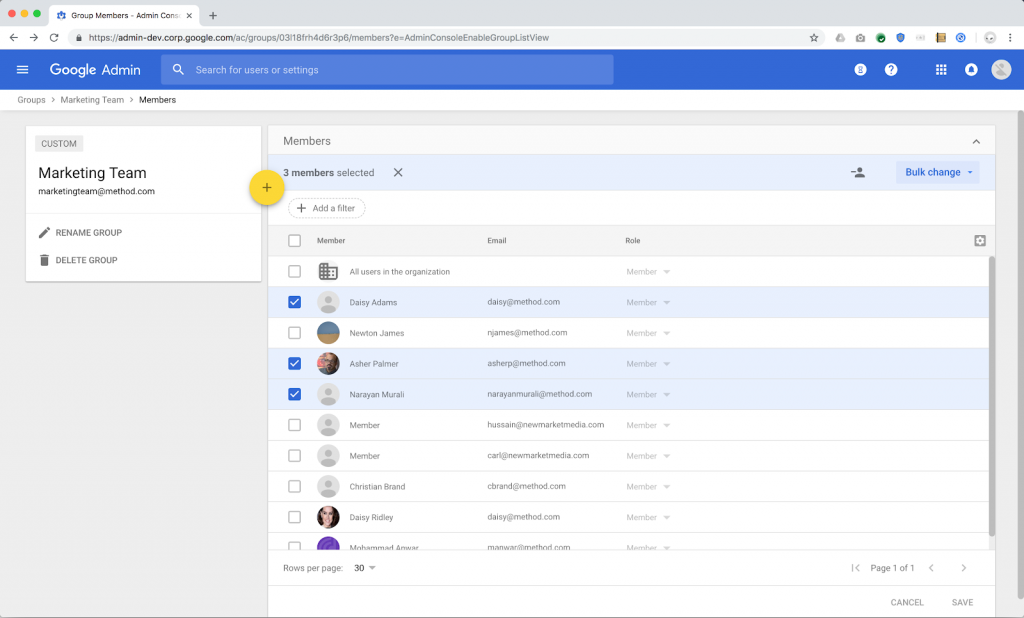
By setting up security groups in the Google Workspace admin panel, administrators can add the correct staff to the group and share resources with the group instead of individual staff.
This approach works for calendar events, shared drives, individual files, and chat spaces.
With groups configured, new team members can be automatically given access to the correct shared drives and chat rooms, and invitations to recurring meetings, streamlining the onboarding process and saving administrators time.
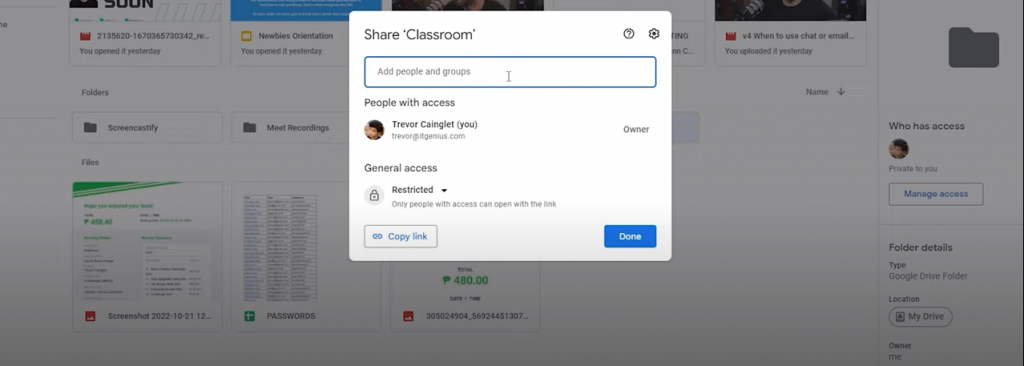
By adopting a group-based sharing system, businesses can improve collaboration, increase efficiency, and better organize their files and folders.
With the right tools and processes in place, group-based sharing can be implemented easily and quickly.
So, if you’re tired of wasting time searching for files or waiting for colleagues to send them, consider switching to a group-based sharing system.
Tip 2: Organize Your Drive
Keeping your Google Drive organized is crucial for easy access and increased productivity. Organizing your drive is relatively simple and can be done using folders and subfolders.
It’s essential to create a logical structure that reflects your team’s workflows, ensuring that everyone can find the files they need quickly.
It’s also useful to use descriptive file names, making it easy to search and filter files. By organizing your drive, you’ll avoid the chaos of a cluttered drive, reduce time spent searching for files, and make it easier to collaborate with team members.
I would strongly advise you to teach your team to use only Share Drive everytime they work on a shared document.
MyDrive should only be used for personal document use. The golden rule would be: As soon as a document is shared, it should be stored in a Shared Drive.
This rule will save you from tons of bad surprises when a collaborator leaves your company. For 1 year, it is now possible to determine the MyDrive storage capacity of users. This rule can be deployed by OU or Group from the admin console.
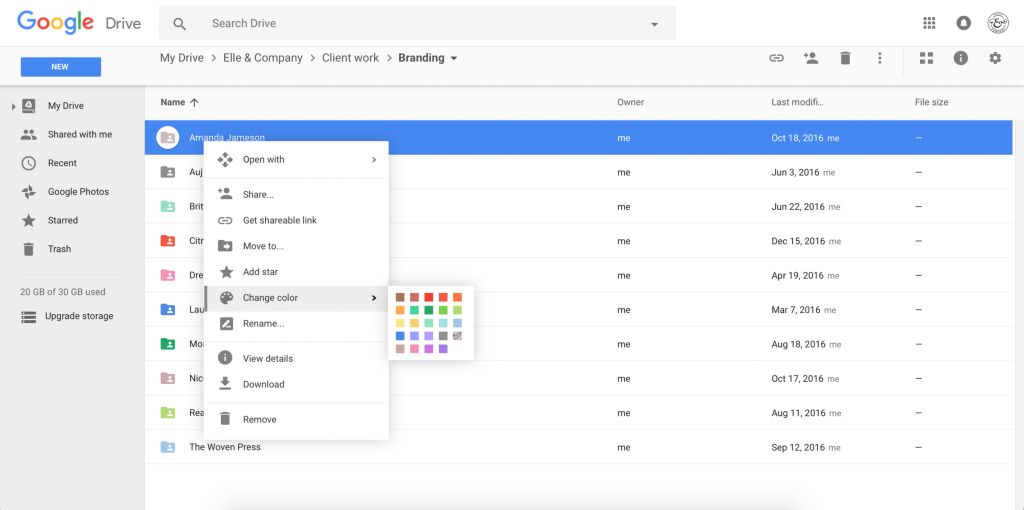
You can also use colors for your folders to make it more recognisable.
Tip 3: Use Google Workspace Groups for Email Management
Google Workspace groups can be used to manage email communication efficiently. By creating groups for specific teams or departments, you can ensure that everyone receives the right emails without cluttering their inbox with irrelevant emails.
For example, if you have a sales team, you can create a sales group, and all sales-related emails can be sent to that group. Similarly, if you have a customer service team, you can create a customer service group, and all customer-related emails can be sent to that group.
Using a Google Workspace Group can help improve email management in the following ways:
- Reduce email clutter: By using a Google Workspace Group, you can keep your inbox clutter-free by directing emails to a shared inbox. This can also help reduce the number of emails that you receive in your personal inbox.
- Collaboration: A Google Workspace Group allows multiple people to collaborate on a single email thread. This can help ensure that everyone stays on the same page and that all relevant stakeholders are included in the conversation.
- Delegation: With a Google Workspace Group, you can delegate email management to other team members. This can help reduce your workload and ensure that emails are being responded to in a timely manner.
- Easy management: Google Workspace Groups are easy to set up and manage. You can add or remove members, change settings, and monitor activity from the Google Admin Console.
In conclusion, creating an efficient and effective organizational structure in Google Workspace is essential for businesses of all sizes.
By using group-based sharing, organizing your Google Drive, and customizing your dashboard, you can save time, increase productivity, and ensure your team has everything they need to work collaboratively and efficiently.
Whether you’re new to Google Workspace or a seasoned administrator, these tips will help you get the most out of this powerful tool. So, be sure to set up groups to save time and increase security. As Pete Moti said, “Let’s systemize, organize, and scale using Google Workspace.”
Any questions, comments, or reactions about our article, we’re happy to hear that in the comment section below. We always love diving into healthy discussions.
If you also feel that you haven’t been using Google Workspace at its best, reach us at (Cloud Sultans : contact@cloudsultans.com). We offer free consultation or system audit to find you the best possible solution.