Are you a small business owner looking for a flexible and innovative solution to streamline your work? Look no further than Google Workspace! In this article, we will guide you through the steps of setting up Google Workspace for your small business. From getting started with your own custom email domain to accessing all the different Google applications in one place, we’ve got you covered. Say goodbye to installation headaches and hello to advanced security and admin features. Ready to boost your productivity with Google Workspace? Let’s dive in!.
—->>>> Cloudsultans.com we love helping our clients and guide them to success. That’s one of the reason, we ask you please to share this post in social media to your network. 🙂
At Cloud Sultans, our mission is to help small and large businesses to better collaborate and achieve high productivity with their teams by maximising the power of Google Workspace (formerly GSuite).
Step 1: Sign up for Google Workspace
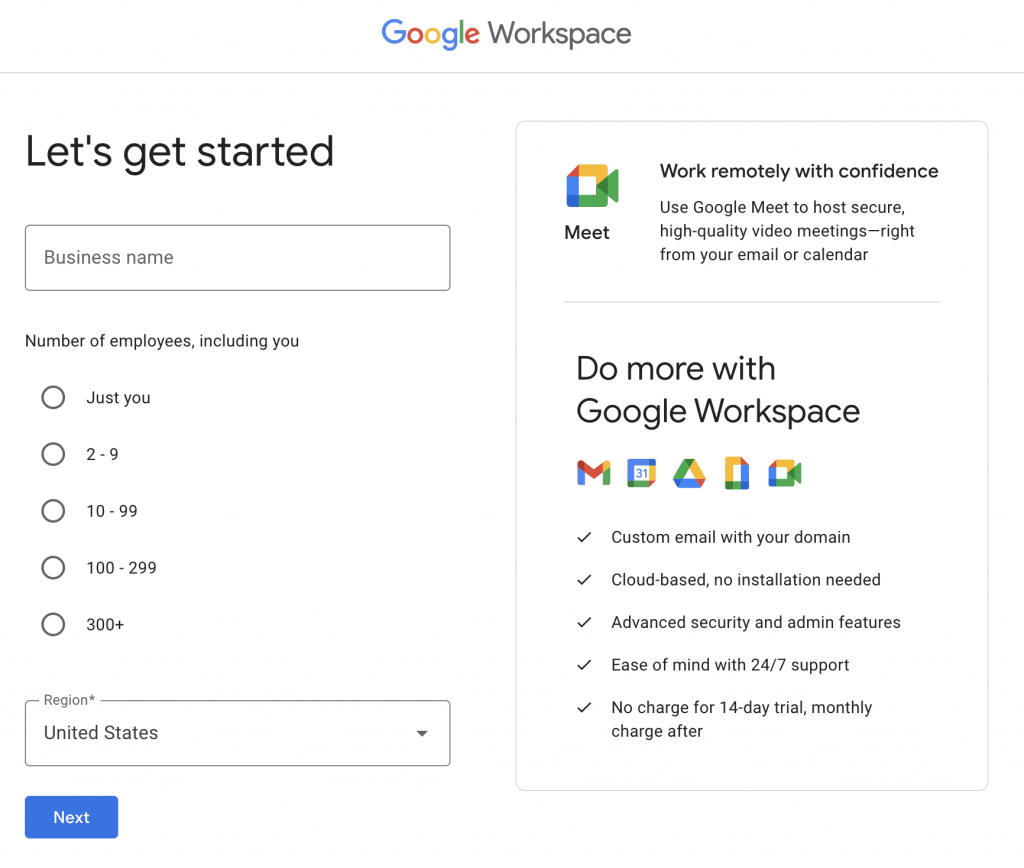
To get started with Google Workspace, visit workspace.google.com or search for Google Suite. Once you’re there, click on Get Started and enter your business name. You’ll then need to select the number of employees you have and your region. After entering your contact information, Google will ask if you have a custom domain. If you do not have one, you can purchase it from Google Workspace.
Step 2: Choose a Custom Domain
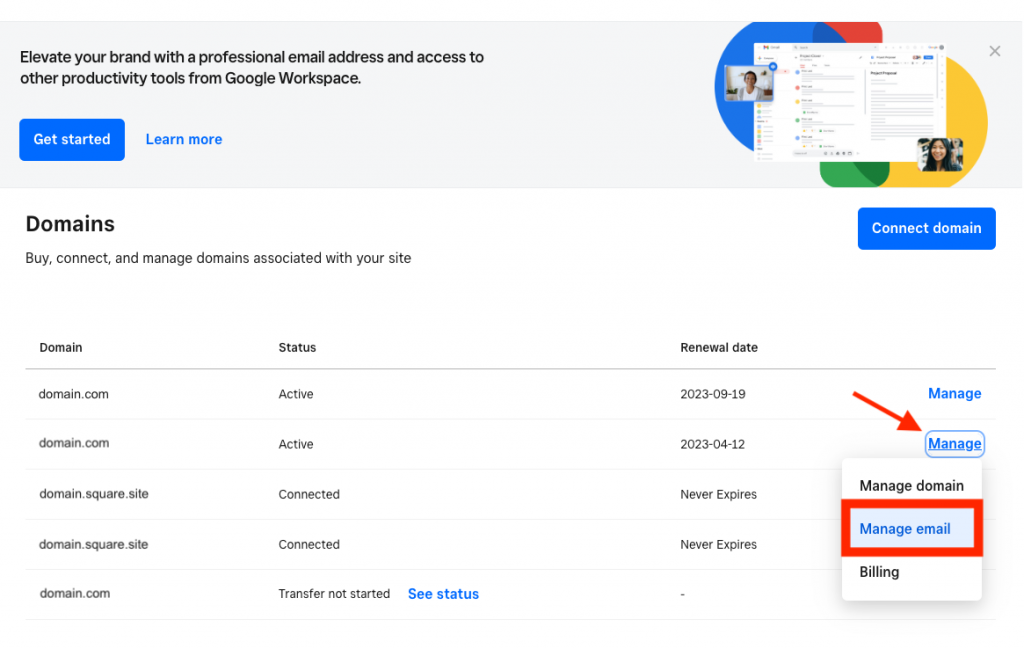
If you already have a custom domain, select “Yes, I have one and I will use it.” If you do not have a custom domain, select “No, I need one.” Google Workspace will then suggest some options for your domain name, and you can choose the one that best suits your business.
Step 3: Set Up Your Google Workspace Account
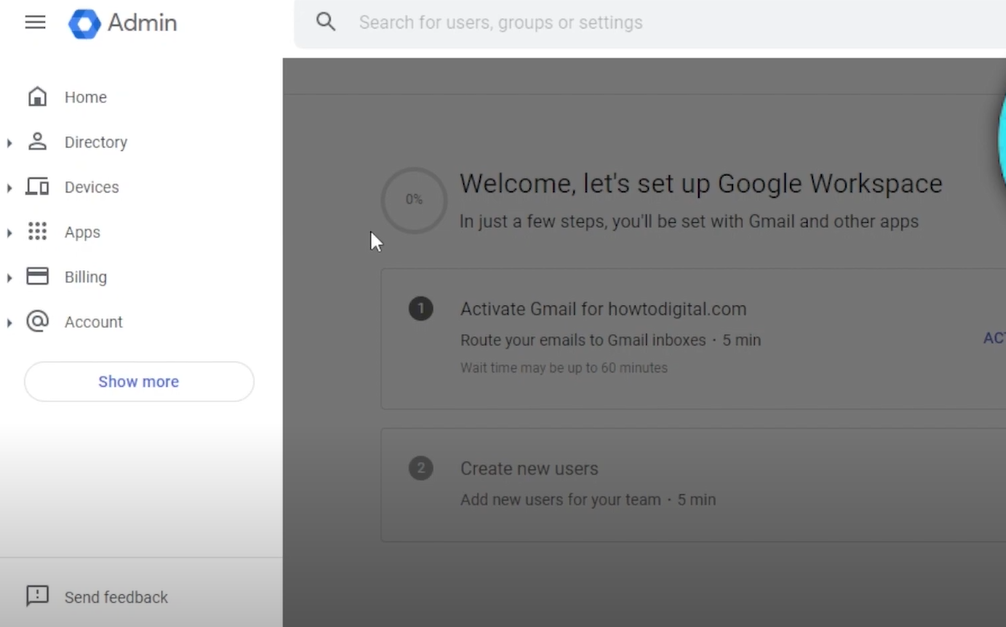
Once you have selected your custom domain, you’ll need to create your Google Workspace account. This will involve choosing a username and password, agreeing to the terms and conditions, and logging in to your new Google Workspace account.
Step 4: Explore Google Workspace Applications
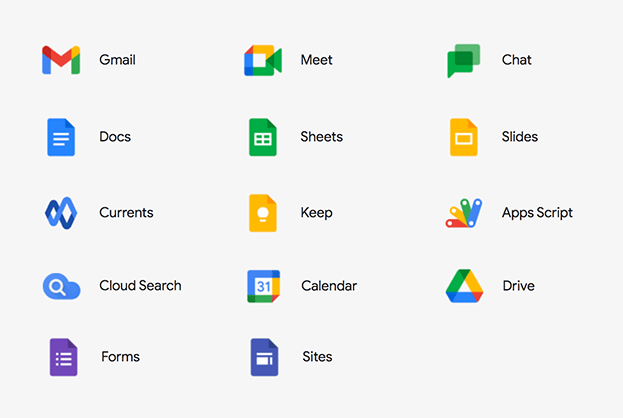
Google Workspace offers a variety of applications that can help your small business operate more efficiently. These include Google Drive, Google Meet, and Google Sites. You can find all of these applications by clicking on the Google Workspace menu in the top right corner of your screen.
Step 5: Setting up and using Google Drive

Google Drive is a cloud storage platform that is integrated into Google Workspace. It allows you to store and share files and folders securely online. To access Google Drive, click on the app launcher icon (the 9-dot grid) in the top right corner of the screen and select “Drive”. From here, you can create new folders, upload files, and share them with others. You can also use Google Drive to collaborate on documents in real-time with other users.
Step 6: Using Google Meet for video conferencing

Google Meet is a video conferencing tool that allows you to have meetings and virtual conferences with others. To access Google Meet, click on the app launcher icon and select “Meet”. From here, you can create a new meeting or join an existing one. You can also share your screen, mute your microphone, and turn your camera on or off during the meeting. Google Meet is an excellent tool for remote teams or businesses that need to connect with clients or customers virtually.
Step 7: Create a Website with Google Sites
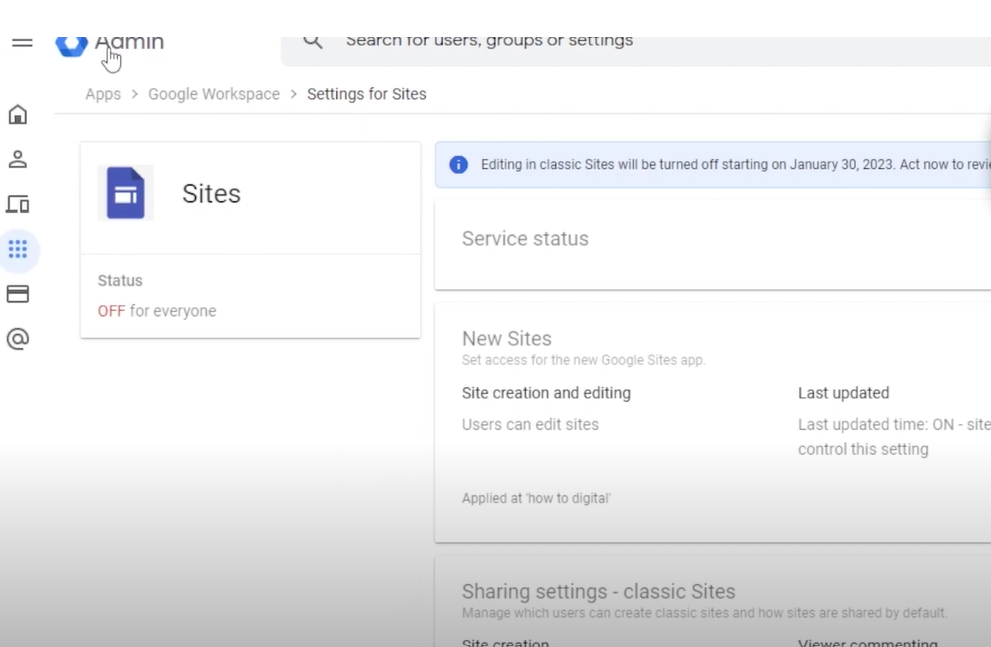
Google Sites is a free website builder that allows you to create professional-looking websites with ease. With drag-and-drop functionality, you can easily create pages, add content, and customize your website to suit your business’s needs.
Step 8: Organize Your Google Workspace Account

Google Workspace offers several tools to help you stay organized, such as Google Calendar, Google Keep, and Google Tasks. Google Calendar allows you to schedule events and meetings, while Google Keep is a note-taking app that lets you save ideas and to-do lists. Google Tasks is a to-do list app that integrates with Google Calendar and allows you to assign tasks to specific dates and times. By using these tools, you can stay on top of your schedule and prioritize your tasks more efficiently.
Step 9: Secure Your Google Workspace Account
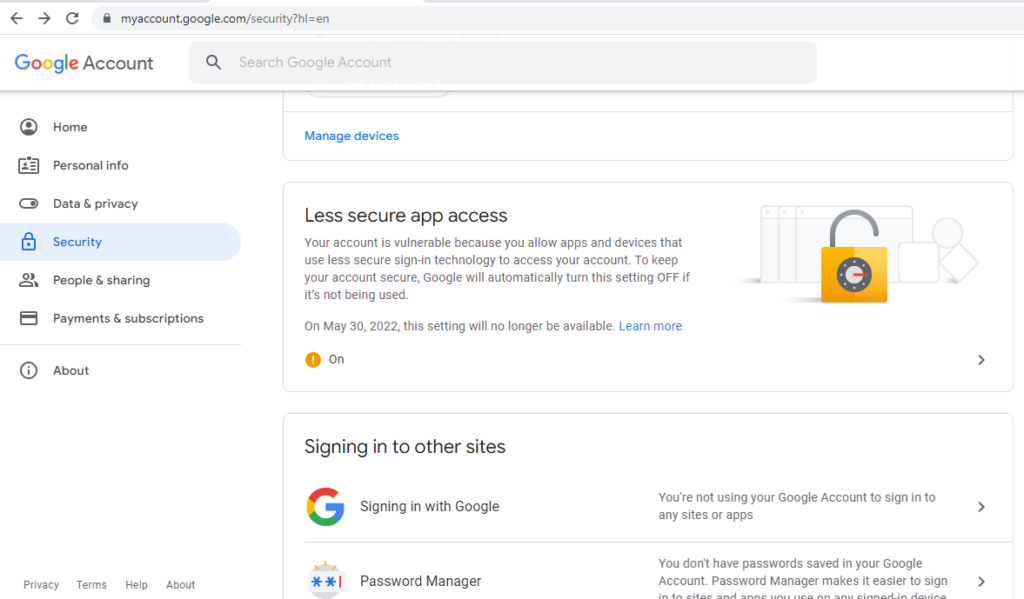
Google Workspace offers advanced security and admin features to help protect your data and accounts. Some tips for securing your Google Workspace include enabling two-factor authentication, using strong passwords, and setting up device management. You can also use Google’s security center to monitor and manage security threats to your account.
In conclusion, Google Workspace is an all-in-one cloud-based productivity suite that can help small businesses operate more efficiently. By following these steps, you can set up and utilize Google Workspace to its full potential. With Google Drive, Google Meet, and Google Sites, you can store, collaborate, and communicate with ease, while the advanced security and admin features give you peace of mind that your data is secure.
Any questions, comments, or reactions about our article, we’re happy to hear that in the comment section below. We always love diving into healthy discussions.
If you also feel that you haven’t been using Google Workspace at its best, reach us at (Cloud Sultans : contact@cloudsultans.com). We offer free consultation or system audit to find you the best possible solution.